



 Automations give you the ability to create dynamic processes to automatically move SKUs from one Repricing Rule to another or automatically turn Repricing OFF if certain conditions are met.
They are a great way to keep your prices competitive and increase your sales with minimal effort.
Creating an Automation
- Click on Repricer on the top of the screen.
- Select Automations on the left-hand side.
- Click +Add New Automation.
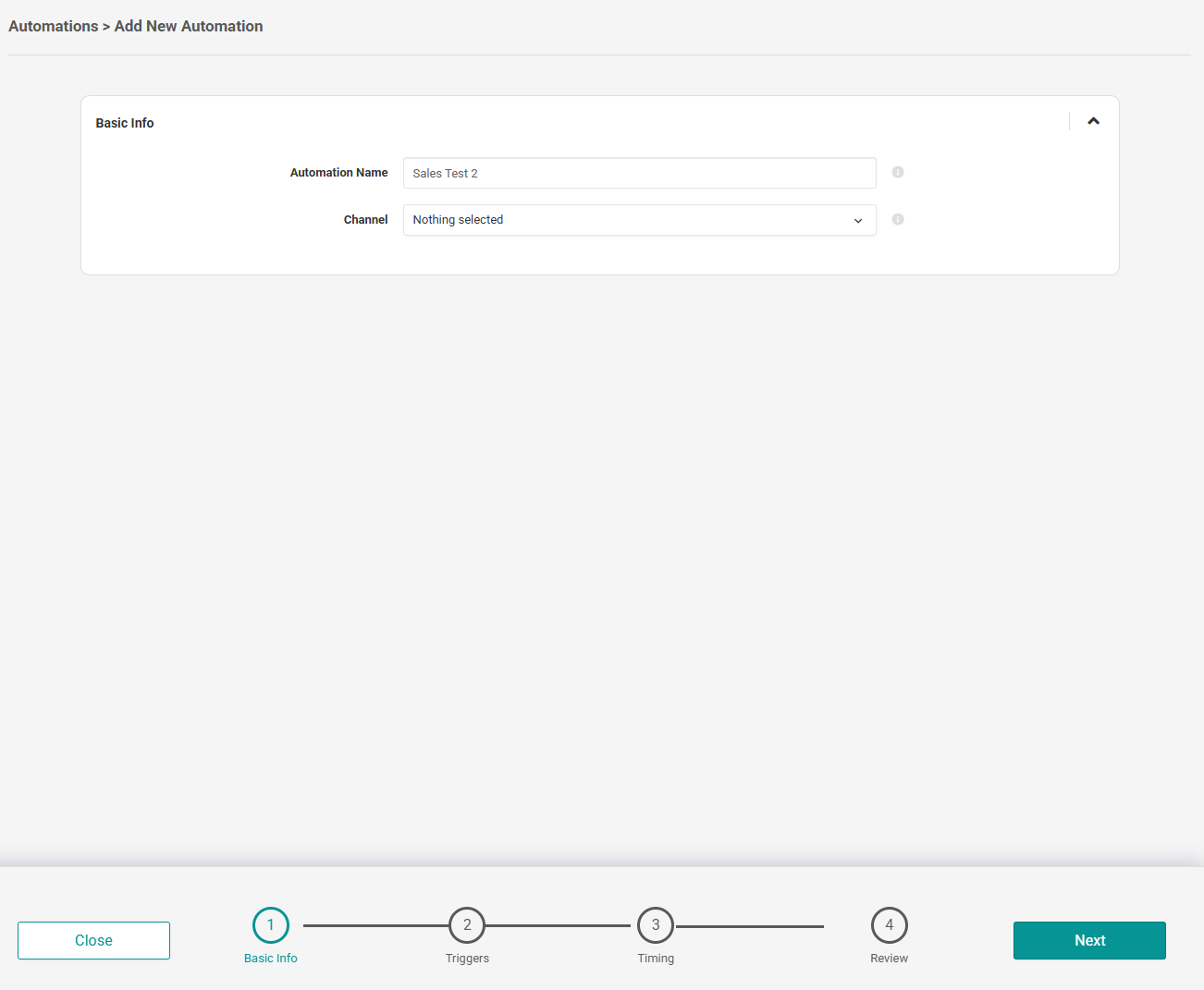
- Name your automation and then choose which marketplace you want to use it for.
- Click Next.
Automation Triggers
After that, you will need to choose what you want to trigger the automation and if you would like this to either move from one Repricing Rule to another or to turn Repricing OFF.
There are lots of different triggers to choose from including Sales, Orders, Buy Box Winner, Stock Quantity, Stock Age, Price War, Best Seller, etc...
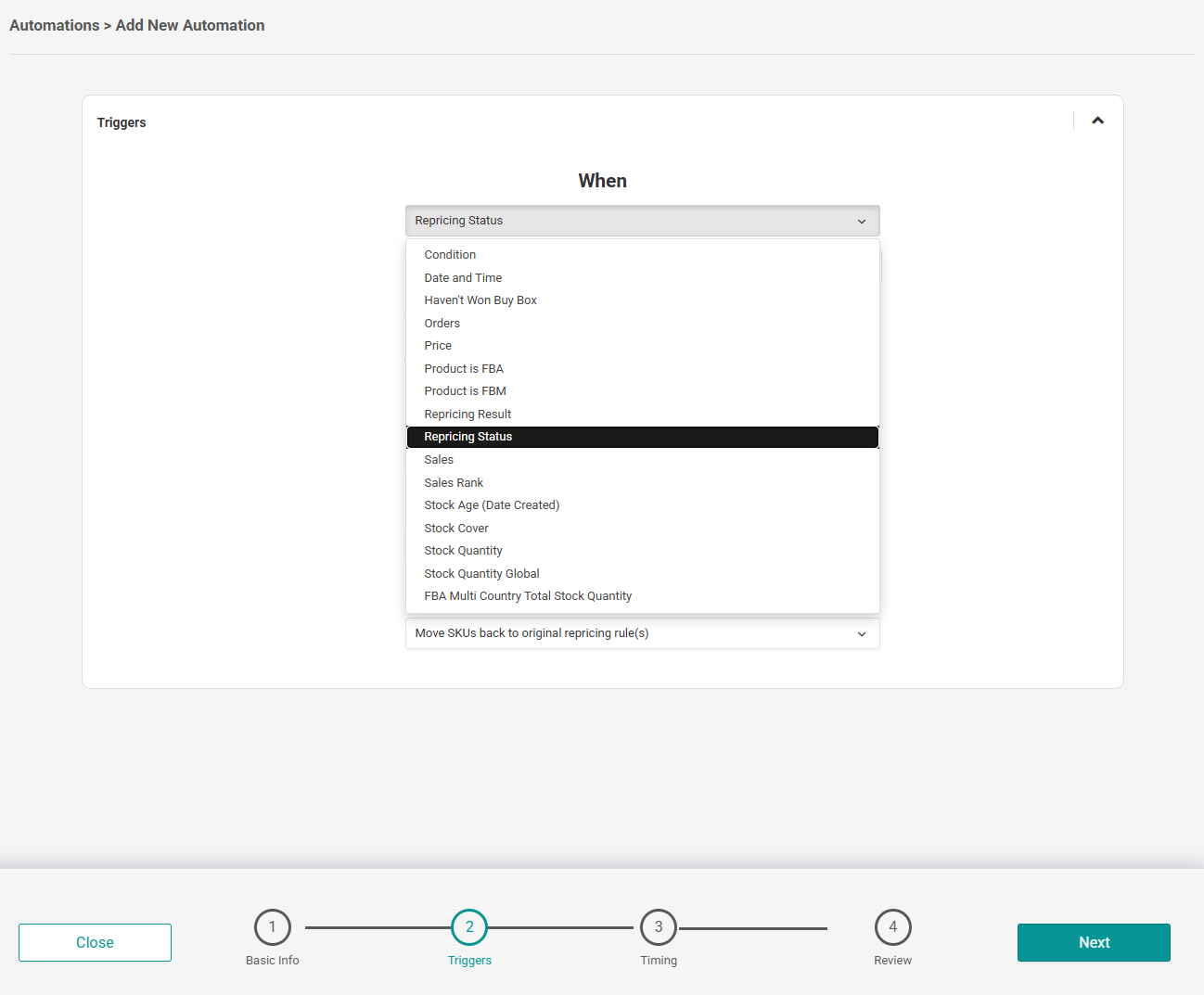 Once you select your trigger, you can then select which Repricing rule you want to move the products from and which Repricing rule you want to move them to.
You will be able to choose between:
Condition - Based on the condition of the item.
Date and Time - Based on a specific day and time.
Orders - Refers to the order volume/units sold.
Price - Based on your current price, your Min/Max price compared to the Buy Box Price, Specific Price, or Lowest/Highest Priced Seller.
Product is FBA - When your product is fulfilled by Amazon
Product is FBM - When your product is fulfilled by you the Merchant
Repricing Status - Automate your products based on the current Repricing Status of that Product (Ie, At Min, At Max, Only Seller, etc)
Sales - Refers to the sales value in the currency of the marketplace
Sales Rank - Based on your product sales rank on Amazon.
Stock Age (Date Created) - Refers to when the stock was first created/listed by you to sell on your Amazon marketplace.
Stock Cover - Based on how long your stock is estimated to last based on sales over a selected number of days.
Stock Quantity - Based on the amount of stock you currently hold for your product(s) for the marketplace.
Stock Quantity Global - Based on the amount of stock you currently hold for your product(s) across all marketplaces.
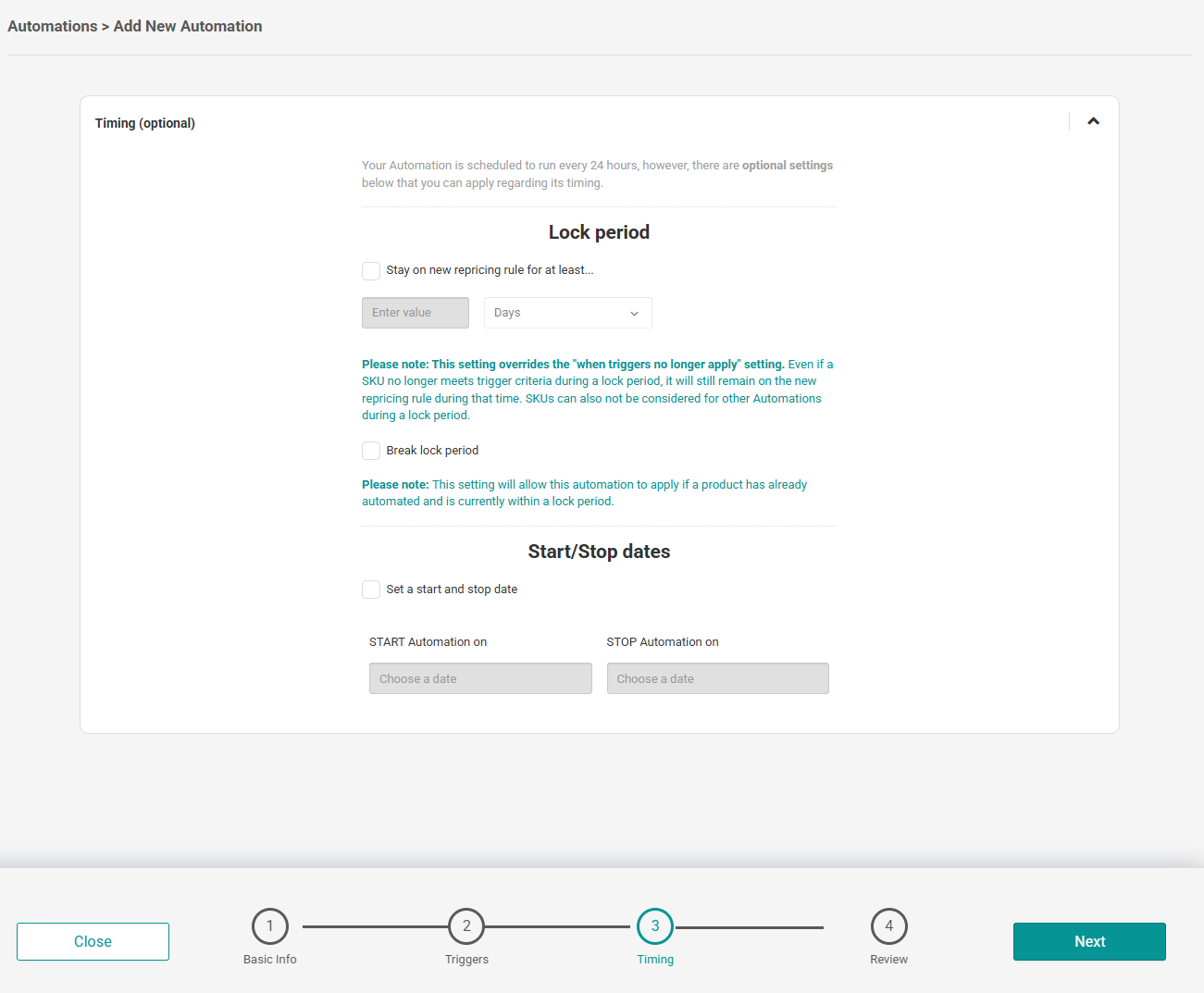
Automations Timing (optional)
Once a product is moved from one Repricing rule to another, you can choose how long it should stay there before even being considered for automation again.
Automations Review
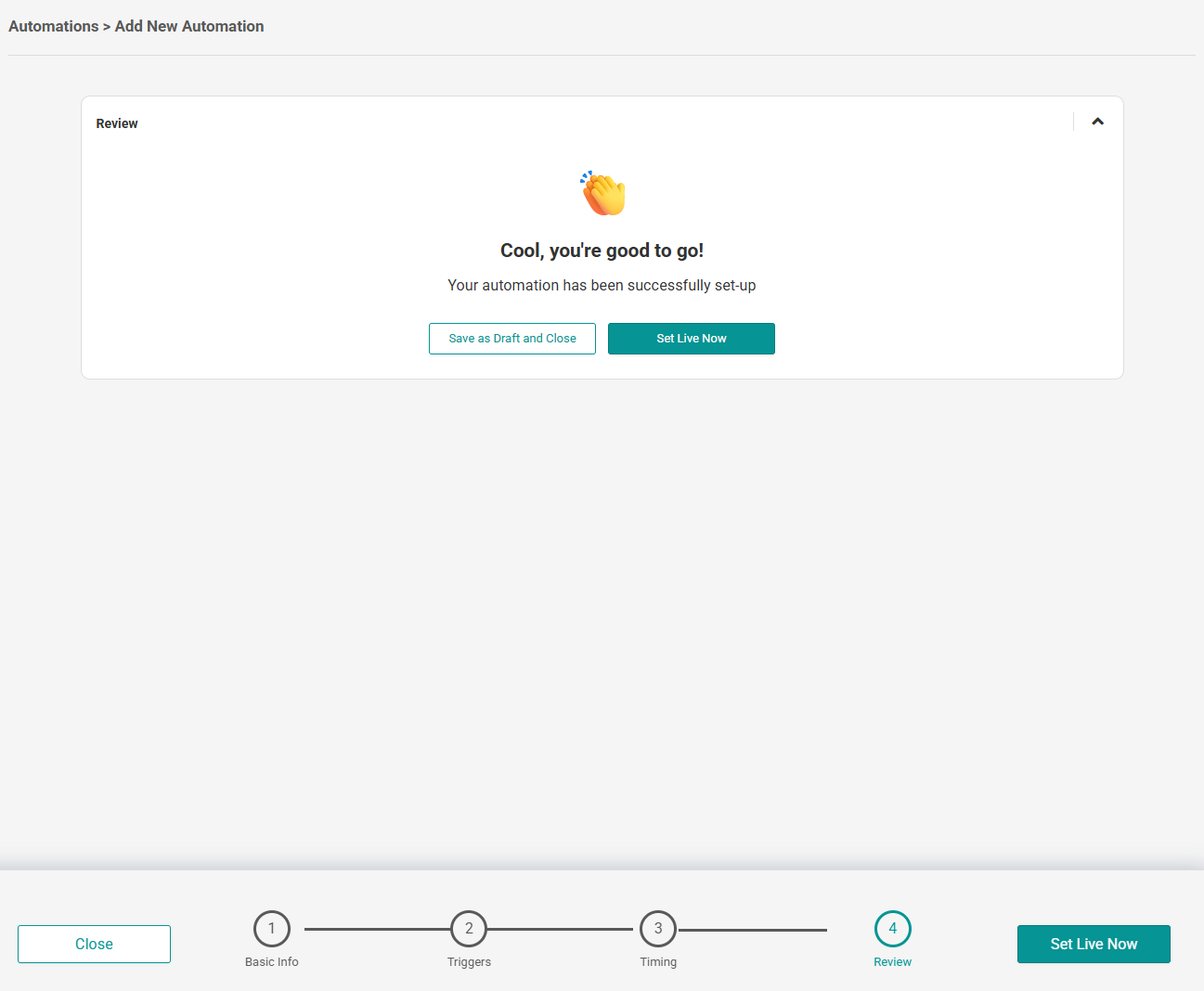
The last step is to review and set the automation live. You will see how many products your automation schedule will affect based on your triggers and settings.
When you're happy, click Set Live Now.
How often do Automations run?
Whenever you set up an Automation in your Repricer.com account, it will automatically run within the next hour after its creation.To find out how often a certain Automation will run, simply check the Review section and it will show directly on-screen how often it will run.
Automations run hourly.
You will also see the number of products automated in the last hour directly on-screen, under Recently Automated.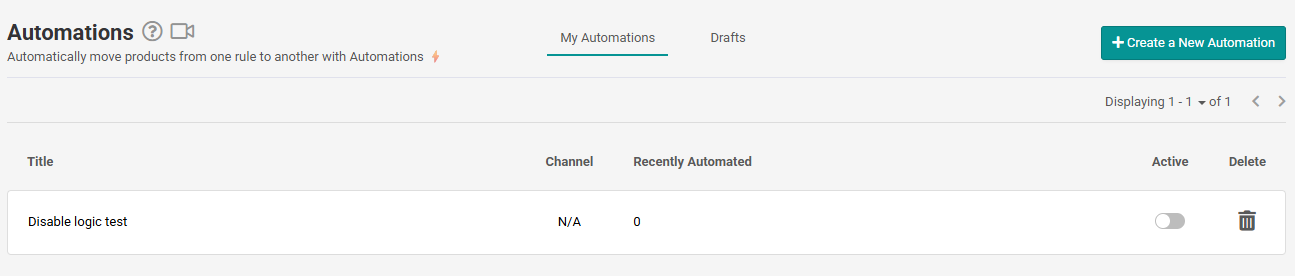
Further Reading
If you want to learn more about the advanced filtering options in Repricer.com, click here.
Interested in finding out more about saving time with bulk actions in Repricer.com? Click here.