




If you want to fine-tune your pricing strategy based on factors like Buy Box status, fulfillment method, stock levels, shipping, and more, then Competitor Rules are exactly what you need! You can add Competitor Rules to an existing Repricer that you've created, or create a new repricing rule. In this article, we will guide you through creating Competitor Rules and what you can do with them. If you'd like to understand how to create a Repricing Rule, click here.

What are Competitor Rules and Compete Settings?
Every Repricing Rule comes with Compete Settings. These Compete Settings determine how you are going to compete with other sellers. You can use your Compete Settings to price against FBA, SFP, MFN and Amazon as a seller in different ways. For example, beat FBA sellers by 10c, or price match against SFP sellers. Your Amazon metrics will allow you to determine the best Compete Settings for you to use.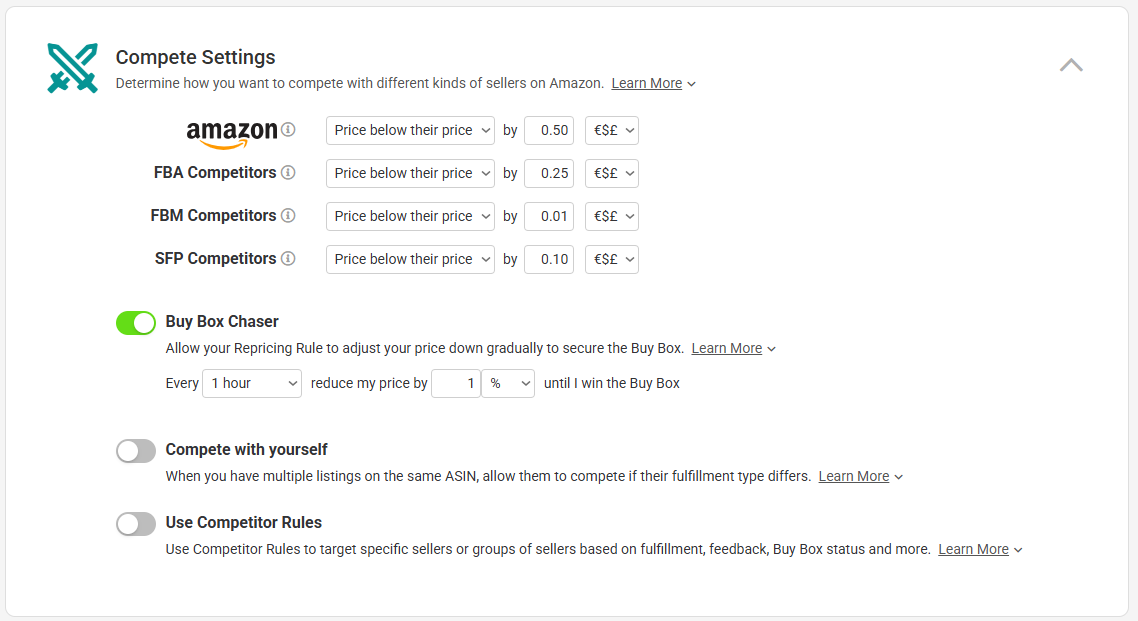 Your Compete Settings effectively work as a broad brush, applying to all competitors. But we know that not all competitors are equal, and there are some you'd want to compete with differently. For example, you may wish to be less aggressive against sellers with lower feedback or slower shipping times. This is where Competitor Rules come in.
A Competitor Rule is essentially a rule within a rule. Within each Competitor Rule, you can determine the scenario in which it would apply and how you would like to compete with your competitor. This means you can be very granular in how you look at your competitive landscape and have your rule react differently depending on who your competitors are.
Examples of Competitor Rules could be: 1) go below your FBA Competitors by 10c; 2) go below FBM competitors by 1c; and 3) price above competitors that have less than a 90% feedback score.
You can also control what happens if your Competitor Rules don't match any other sellers. You can apply a broadbush setting in this case, or do nothing. If you want to understand Competitor rules better, read this practical example.
How to create a Competitor Rule?
Competitor Rules are part of Amazon Repricing Rules. If you want to add one, you should,- Click Repricing Rules on the left-hand Nav
- Choose the Repricing Rule you wish to add a Competitor Rule to
- Navigate to the Compete Settings section and toggle on the Use Competitor Rules option
- The Competitor Rules section will have opened up just below Compete Settings. Click Add a Competitor Rule to get started
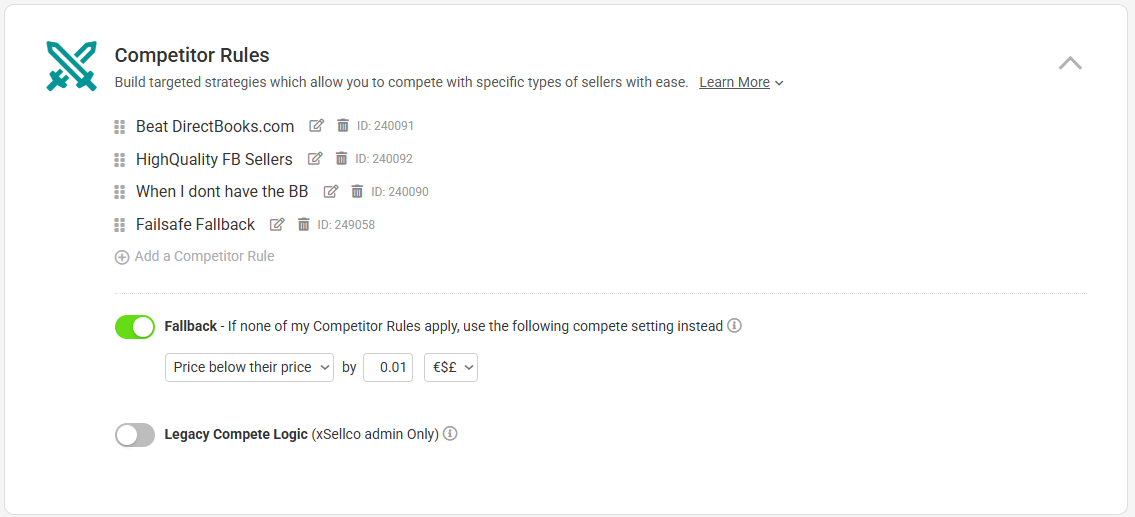
Competitor Rules Options
Below you can find an explanation of all the options you have when creating a competitor rule.
Buy Box & Fulfillment section
Within the Buy Box & Fulfillment section, you will determine how to target competitors based on your and their Buy Box status, Fulfillment methods, and Prime.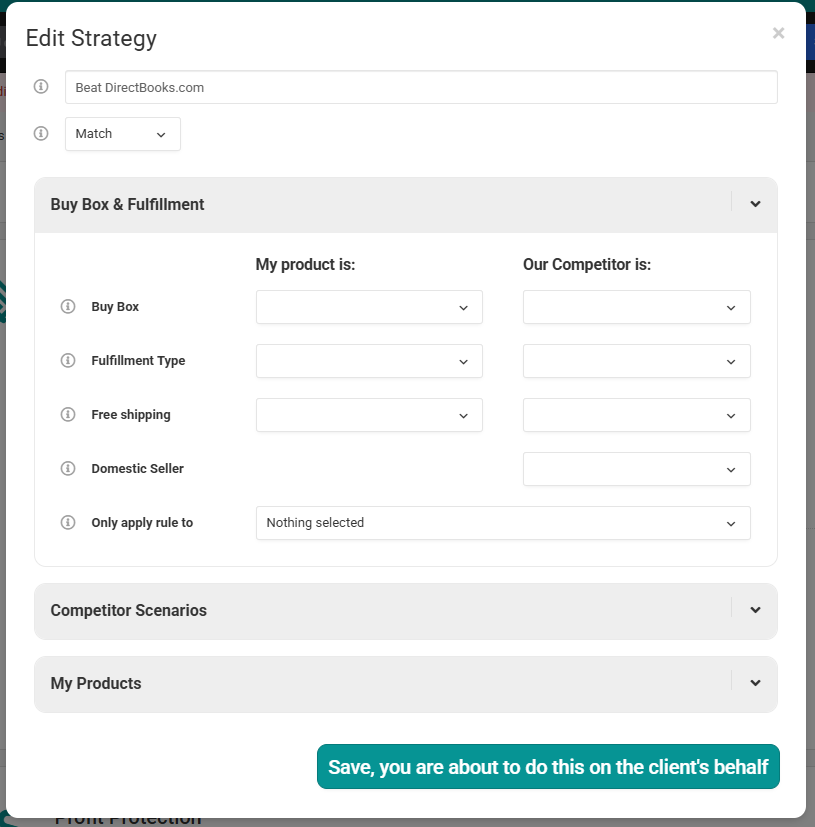 Here are the options available,
- Buy Box: Here, you can target competitors based on whether you have the Buy Box or your competitor has the Buy Box.
- Fulfilment Type: This rule helps you target your competitors based on fulfilment types. Here you can select if you or your competitor are FBA or FBM.
- Free Shipping: Here, you can change your strategy based on whether you or your competitor has free shipping.
- Domestic Seller: With this rule, you can include or exclude competitors based on if their product is being fulfilled domestically.
- Only apply rule to: Using this rule, you can limit this competitor rule to specific Amazon marketplaces
Competitor Scenarios section
In this section, you can filter competitors based on characteristics specific to them.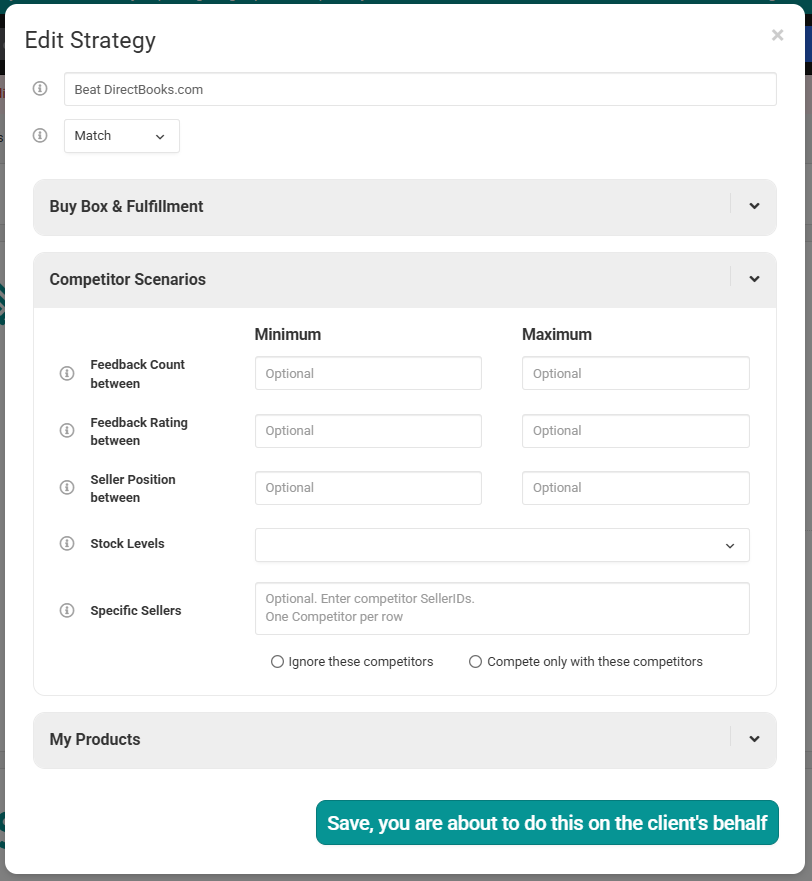 Here are the options available:
- Feednack Count between: Target competitors that have a certain number of ratings on their Amazon store.
- Feednack Rating between: Target competitors based on their overall review scores from the past 12 months.
- Seller Position between: This Competitor rule is for when you have a strategy targeting products based on how competitive the market for them is.
- Stock Levels: Target competitors based on their stock levels
- Specific Sellers: In this section, you can choose from the dropdown whether to Include or Ignore specific sellers. You then input the seller(s) sellerID. Make sure to only put one Seller ID per line. To find the sellerID, go to your competitor’s storefront on Amazon and copy the string of letters and numbers that appear after seller= in the URL. To include Amazon, just enter AMAZON.
My Products Section
In this section, you can filter products based on your own product's current status.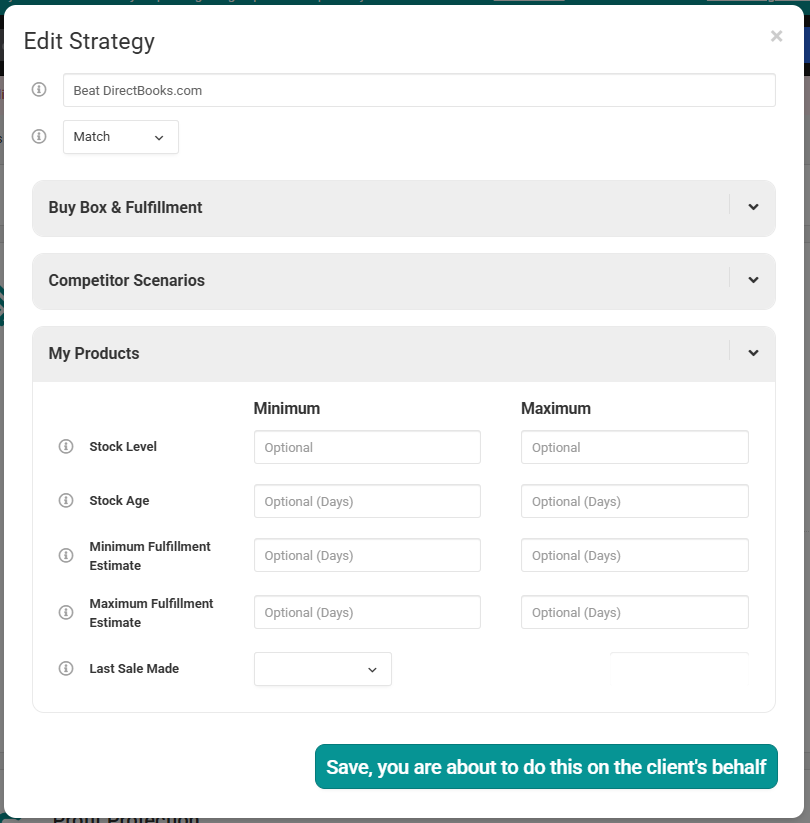 Here are the options available:
- Stock Level: Reprice based on your stock levels. For instance, if you have a high amount of stock for a product you may choose to reprice more aggressively.
- Stock Age: Reprice based on your stock age. This is helpful for instances where you’d like to move old stock quickly or if you have an item that has a sell-by date.
- Lead Time to Fulfilment: Reprice based on the amount of time your competitor takes between when a customer places an order, and the seller ships the product. You can choose a range of both minimum days and maximum days.
- Last Sale Made: Here, you can choose to reprice your product based on when the last sale of the product happened. Whether it is hours, days, weeks or months.
Further Reading
If you want to learn how to assign Repricing Rules to your products, click here.Want to understand how advanced options work? Click here.
exclude competitors, , exclude competition, competition rules, competitor rules